
Introduction: Quick Overview of Finding a Printer IP Address
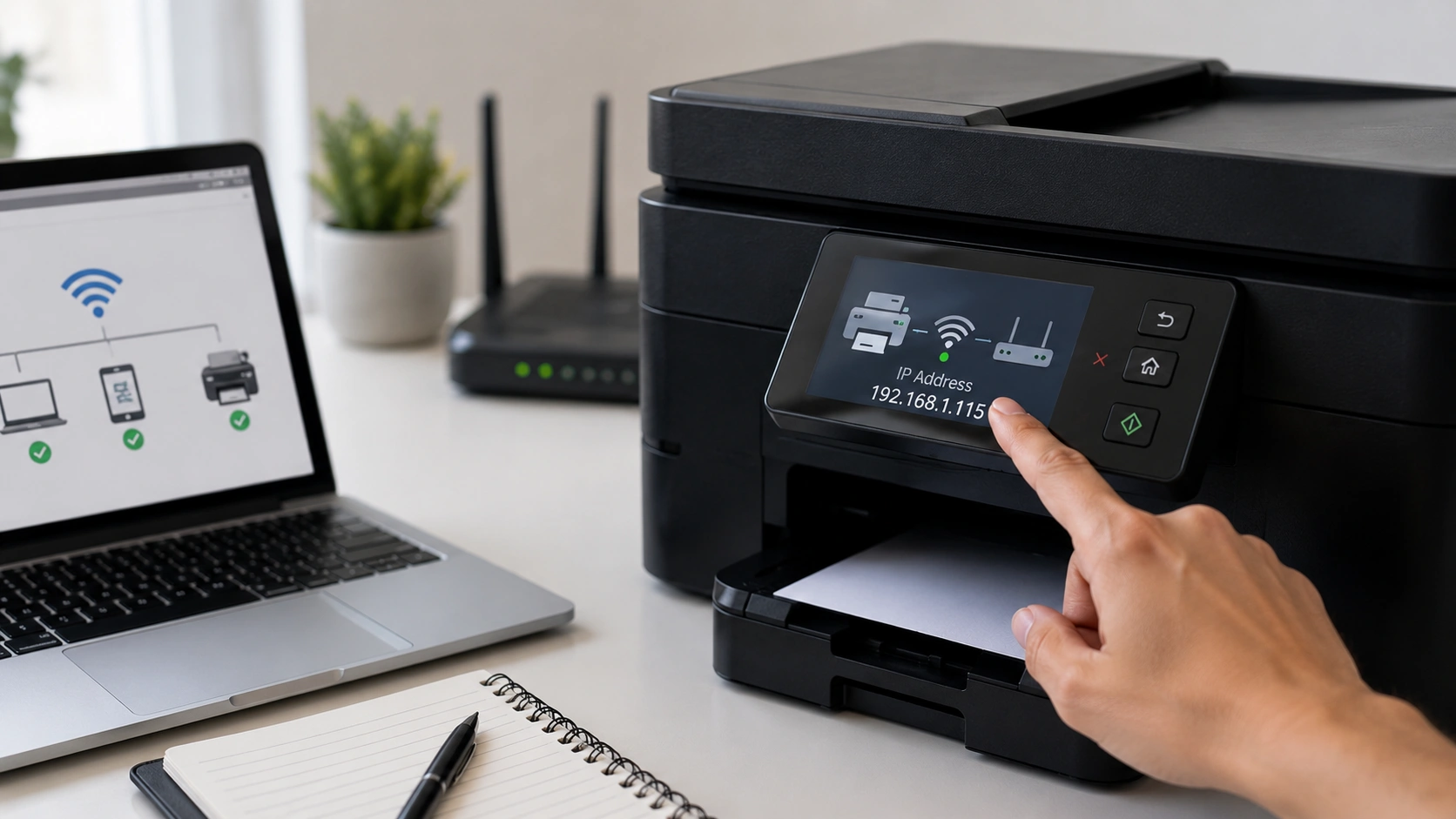
How to find the IP address of a printer is a common question when a printer is offline, hard to connect, or needs to be added manually to a computer, phone, or office network. A printer IP address is the network address your router uses to identify your printer, just like it identifies a laptop, phone, or tablet.
You may need to find printer IP address details when setting up a wireless printer, fixing a connection problem, adding a printer through TCP/IP, or checking why print jobs are not reaching the device. The good news is that there are several simple ways to locate it. You can check the printer control panel, print a Network Configuration Page, look in Windows or Mac settings, check your router connected devices list, or use a printer app like HP Smart, Canon PRINT, Epson Smart Panel, or Brother iPrint&Scan.
Quick Answer: The Best Ways to Find a Printer IP Address
The easiest way to find printer IP address information is to check the printer’s own network settings. On many printers, you can open Settings, Wireless Settings, Network Setup, or Network Information from the printer screen. The IP address may appear under IPv4, TCP/IP, or Wi-Fi details.
If your printer has no screen, the next best method is to print a network configuration page. This report often shows the IP address, MAC address, SSID, connection status, and other network details.
You can also check your computer. On Windows 11 or Windows 10, the IP address may appear in Printer Properties, the Ports tab, or printer settings. On Mac, it may appear in Printers & Scanners, Options & Supplies, or CUPS.
Another reliable option is to log into your router configuration page and look under Connected Devices, Client List, or DHCP Client Table.
| Best Method | Best For |
| Printer screen | Printers with display panels |
| Network configuration page | Printers with report option |
| Windows or Mac settings | Already-installed printers |
| Router device list | Network troubleshooting |
| Printer app | HP, Canon, Epson, Brother users |
What Is a Printer IP Address?
A printer IP address is a unique network address assigned to a printer on a local network. It helps your computer, phone, router, and other devices find and communicate with the printer.
Most home and office printers use a private IP address, which means it works inside your Wi-Fi or wired network. For example, your router may assign your printer an address like 192.168.1.45 or 10.0.0.25. These are common IPv4 address formats used on home networks.
A printer may also support IPv6, but most users looking for a printer address need the IPv4 address because it is commonly used when adding a printer manually or troubleshooting.
Think of the IP address as the printer’s network location. Without it, your computer may not know exactly where to send the print job. That is why knowing how to find your printer’s IP address can be useful when a network printer stops responding or when you need to add it to a new device.
What Does a Printer IP Address Look Like?
A normal printer IP address often looks like a group of numbers separated by dots. For example:
| Type | Example |
| Printer IP address | 192.168.1.35 |
| Router IP address | 192.168.0.1 or 192.168.1.1 |
| Another private network range | 10.0.0.15 |
A MAC address looks different. It usually includes letters, numbers, and separators, such as A1:B2:C3:D4:E5:F6. A printer hostname may look like a name, such as HP-OfficeJet-Printer.
This matters because many users confuse the printer IP address vs MAC address vs hostname. If you are adding a printer manually, your computer usually asks for the IP address, not the MAC address, router IP address, or WPS PIN.
Method 1: Find the Printer IP Address on the Printer Screen
If your printer has a display screen, this is often the fastest method. Most modern wireless printers show the IP address somewhere inside the printer settings or network settings menu.
Start by opening the printer’s control panel. Look for a menu called Settings, Setup, Wireless, Wi-Fi, Network, Network Setup, TCP/IP, or Network Information. The exact wording depends on the printer brand and model.
Once you are in the network menu, look for details such as:
- IP Address
- IPv4 Address
- TCP/IP
- Wireless Details
- Network Information
- Connection Status
For many HP printers, the IP address may appear under Network Information, Wireless Summary, or Printer Settings. On other brands, it may appear under Wi-Fi Status, LAN Settings, or TCP/IP Settings.
If your printer has a small screen with limited options, use the arrow buttons to move through the menu. Some printers also have a wireless icon or information button that opens network details.
This method works best when the printer is already connected to Wi-Fi or Ethernet.
Method 2: Print a Network Configuration Page
Another easy way to find printer IP address details is to print a network configuration page. This page is also called a network report, wireless report, printer status page, or Network Configuration Page.
This report usually includes the printer’s IPv4 address, IPv6 address, MAC address, SSID, connection status, and sometimes the default gateway. It is useful because it gives you the printer’s network information in one place.
To print it, open the printer’s menu and look for Printer Reports, Network Configuration, Wireless Test Report, or Network Status Page. On some printers, you may need to press a combination of buttons, such as the Wireless button, Information button, or Resume button.
The exact steps vary by brand, but the goal is the same: print the page and look for IP Address, IPv4, or TCP/IP.
This method is especially helpful when your computer cannot find the printer but the printer itself is still connected to the network.
Method 3: Find the Printer IP Address on Windows 11 or Windows 10
You can also find printer IP address on Windows if the printer is already installed on your computer. The steps may look slightly different between Windows 11 and Windows 10, but the process is similar.
On Windows 11, open Settings, go to Bluetooth & devices, then choose Printers & scanners. Select your printer and look for Printer properties, Printer preferences, or related settings. In some cases, the IP address appears in the Location field or under device information.
You can also use the classic Control Panel method. Open Control Panel, choose Hardware and Sound, then select Devices and Printers. Right-click your printer and choose Printer Properties. Open the Ports tab and look for a checked port. If the printer was added by IP address, you may see a Standard TCP/IP Port with the printer’s address.
If the port name does not clearly show the IP address, select the port and click Configure Port. The Printer Name or IP Address field may show the address.
This method is useful when you need to check the printer port IP address or update an old address after your router changes the printer’s network assignment.
Method 4: Find the Printer IP Address on Mac
To find printer IP address on Mac, open System Settings or System Preferences, depending on your macOS version. Then go to Printers & Scanners and select your printer.
Look for options such as Options & Supplies, General, Location, or printer details. If your printer was added through the network, the IP address may appear in the location field, device address, or printer connection details.
Some Mac users can also use CUPS, which stands for Common UNIX Printing System. CUPS is a printer management interface built into macOS. Advanced users may enable the CUPS web interface with the Terminal command:
cupsctl WebInterface=yes
Then they can open:
localhost:631/printers
This may show installed printers and related connection details.
For most users, the normal Printers & Scanners method is easier. Use Terminal or CUPS only if the basic settings do not show enough information.
Method 5: Find the Printer IP Address from Your Router
Your router usually knows every device connected to your network, including your printer. This makes the router configuration page one of the most reliable places to find a wireless printer IP address.
Open a web browser and enter your router IP address. Common router addresses include 192.168.0.1, 192.168.1.1, or 10.0.0.1. After logging in with your router username and router password, look for a section called Connected Devices, Device List, Client List, DHCP Client Table, or Network Map.
Your printer may appear by brand name, model name, hostname, or MAC address. For example, it may show as HP Printer, Canon Printer, Brother, Epson, or a model number.
If you have several devices connected, compare the printer brand, MAC address, and device name. The router list should show the current IP address assigned to the printer.
This method is very useful when the printer has no screen, the computer cannot find it, or you want to confirm whether the printer is actually connected to the same Wi-Fi network.
Method 6: Find the Printer IP Address Using Command Prompt
Windows users can also use Command Prompt to look for network devices. This is a more advanced method, but it can help when printer settings are unclear.
Press Windows key + R, type cmd, and press Enter. You can run:
ipconfig
This shows your computer’s network details, including the default gateway, which is usually your router.
You can also run:
arp -a
This command lists IP addresses and MAC addresses seen on your local network. The challenge is that it may show many devices, not just your printer. You may need to compare the results with your router’s connected devices list or the printer’s MAC address from a network report.
Command Prompt is helpful, but it is not always the easiest method for beginners. If you see many IP addresses and do not know which one belongs to the printer, check the router page or print a Network Configuration Page for confirmation.
Method 7: Find the Printer IP Address Using Terminal on Mac
Mac users can use Terminal for advanced network checks. This is helpful if your printer is already on the network but does not clearly show in normal settings.
Open Terminal from the Applications folder under Utilities. A common command used to view network routing details is:
netstat -nr
Some users also use:
netstat -nr | grep default
This helps identify the router or default gateway, but it does not always directly show the printer IP address.
For printer-specific details, CUPS is often more useful. After enabling the CUPS web interface with:
cupsctl WebInterface=yes
you can visit:
localhost:631/printers
From there, you may see printer names, locations, and connection details.
Terminal can be helpful, but if you are not comfortable with commands, use System Settings, your printer screen, or router device list first.
Method 8: Find the Printer IP Address from a Printer App
Many printer brands now offer apps that show printer network information. This is one of the easiest methods for home users who manage printers from a phone.
For HP printers, open HP Smart or the HP app, select your printer, and look for Printer Settings, Advanced Settings, or Network Information. This can help you find the HP printer IP address without using the router.
Canon users may check the Canon PRINT app. Epson users may use Epson Smart Panel or Epson iPrint. Brother users may use Brother iPrint&Scan.
On iPhone, Android, or iPad, make sure your phone is connected to the same Wi-Fi network as the printer. Then open the printer app and select the printer. Network details are usually found under settings, status, or information.
This method is especially useful if you want to find printer IP address from mobile phone and do not want to log into your router.
How to Find the IP Address of an HP Printer
Many users search specifically for HP printer IP address because HP printers are common in homes and offices. To find HP printer IP address, try the printer screen first.
On many HP printers, open Settings, Network Setup, Wireless Settings, or Network Information. Look for IPv4 Address or IP Address. You can also print a Network Configuration Page from Printer Reports.
Another easy option is the HP Smart app. Open the app, select your printer, and check Printer Settings or Network Information. This is often the simplest way to find the address without using Windows, Mac, or router settings.
On Windows, some HP printers may also show the address in Printer Properties, Web Services tab, or the Ports tab.
If the HP printer is connected but not printing, write down the IP address and check whether your computer is using the same address. Sometimes Windows keeps an old printer port after the router assigns the printer a new address.
How to Find the IP Address of Canon, Epson, Brother, and Other Printers
The process is similar for most printer brands, even if the menu names are different. On a Canon printer, look for LAN Settings, Wi-Fi Settings, Network Settings, or TCP/IP Settings. You may also use the Canon PRINT app.
For an Epson printer, check Network Settings, Wi-Fi Status, TCP/IP, or use Epson Smart Panel. For a Brother printer, look under Network, WLAN, TCP/IP, or use Brother iPrint&Scan.
Other brands such as Lexmark, Xerox, Ricoh, Kyocera, and Samsung printer models usually provide similar options. The most common menu labels are Network, Wireless, Wi-Fi, TCP/IP, Status, or Network Report.
If you cannot find the exact path, search the printer manual or manufacturer’s website using your printer model name plus “network configuration page” or “IP address.”
The key point is simple: almost every network printer stores its IP address under network, wireless, or TCP/IP details.
How to Find Printer IP Address Without a Screen
If your printer has no display, you still have several good options. The easiest method is usually to check your router connected devices list. Log into your router or router app and look for the printer under Connected Devices, Client List, or DHCP Client Table.
You can also print a Network Configuration Page. Some printers without screens use button combinations to print this report. For example, you may need to hold the Wireless button, Information button, or Resume button for a few seconds.
Another option is to use the brand’s printer software or mobile app. Apps like HP Smart, Canon PRINT, Epson Smart Panel, and Brother iPrint&Scan may show network information even when the printer has no screen.
If the printer is already installed on your computer, check Windows printer properties or Mac Printers & Scanners.
So, if you need to know how to find printer IP address without printer screen, the router, network report, and printer app are usually the best places to start.
How to Find Printer IP Address Without Router Access
In an office, school, or shared building, you may not have access to the router admin panel. In that case, do not worry. You can still try other methods.
First, check the printer screen or print a Network Configuration Page. These methods do not require router login details. If the printer is installed on your computer, check Windows or Mac printer settings.
You can also ask your IT team or network administrator. In many workplaces, printers are managed through a central system, and users may not be allowed to change network settings or view the full DHCP Client Table.
If you already know part of the printer details, such as the hostname, model name, or location, IT support can usually confirm the correct IP address quickly.
For shared office printers, avoid changing static IP address, manual IP, or DHCP settings without permission. A wrong setting can create network conflicts and stop other users from printing.
Printer IP Address vs MAC Address vs Hostname
A printer IP address, MAC address, and hostname are not the same thing.
The IP address is the network address used to reach the printer. It may look like 192.168.1.45. This is usually the number you need when adding a printer manually.
The MAC address is a hardware identifier. It often looks like letters and numbers separated by colons or dashes. Some printers may also show a 12-digit ID number. A MAC address helps identify the physical network adapter, but it is not usually the address you type into a printer setup box.
The hostname is the printer’s network name. It may look like HP-LaserJet-Office or Brother-Printer. Routers and computers may show the hostname instead of the model name.
This difference is important because users often copy the wrong value. If a setup screen asks for an IP address, use the number that looks like 192.168.x.x or 10.0.x.x, not the MAC address or WPS PIN.
Why Does My Printer IP Address Keep Changing?
A printer IP address can change because most home routers use DHCP, which stands for Dynamic Host Configuration Protocol. DHCP automatically gives devices an IP address when they join the network.
This is convenient, but it means the printer may not always keep the same address. A DHCP lease can expire, the router may restart, the printer may reconnect after being off for a long time, or the network configuration may change. Some routers renew leases every 24 to 48 hours, though the timing depends on router settings.
A changing IP address can cause printing problems. For example, your computer may still try to send print jobs to an old IP address, while the printer now has a new one. This can make the printer appear offline even though it is connected to Wi-Fi.
If your printer IP address keeps changing, the best solution is often to reserve the printer’s IP address in your router or assign a static IP address carefully.
How to Stop a Printer IP Address from Changing
There are two common ways to stop a printer IP address from changing: use a static IP address or create a DHCP reservation.
A static IP address is set directly on the printer. You manually enter the IP address, subnet mask, and default gateway. This can work well, but it may confuse beginners because the wrong numbers can break the printer’s network connection.
A DHCP reservation is usually easier for home users. You set it inside the router, telling the router to always give the same IP address to the printer’s MAC address. The printer still uses DHCP, but it receives the same address every time.
| Option | Best For |
| Static IP address | Advanced users or office setups |
| DHCP reservation | Most home users |
| Dynamic IP address | Simple setup, but can change |
If you want a stable connection, a DHCP reservation is often the safer choice because the router manages the address.
How to Add a Printer Using Its IP Address
After you find the printer IP address, you may want to add the printer manually. This is helpful when your computer cannot discover the printer automatically.
On Windows, go to Settings, open Printers & scanners, and choose Add device. If Windows does not find the printer, look for the option to add it manually. Choose an option like Add a printer using TCP/IP address. Enter the printer IP address in the Address field and continue through the setup.
In the classic Windows setup, you may see Add Standard TCP/IP Printer Port Wizard or Standard TCP/IP Port. This is normal.
On Mac, open Printers & Scanners, click Add Printer, then choose the IP option. Enter the printer IP address and select the correct protocol or driver if needed.
This process is useful for network printers, office printers, and printers that do not appear automatically through wireless discovery.
What to Do If You Cannot Find the Printer IP Address
If you cannot find the printer IP address, start with the basics. Make sure the printer is powered on, connected to Wi-Fi or Ethernet, and not showing a network error. Confirm that your computer or phone is on the same Wi-Fi network as the printer.
If the printer has a screen, check Network Settings or Wireless Settings again. If possible, print a fresh Network Configuration Page. If the printer does not appear in your router’s Client List, it may not be connected to the network.
Also check for common problems such as a wrong Wi-Fi password, disabled Wi-Fi, weak signal, or the printer being connected to a guest network. Guest networks often block devices from seeing each other.
Restarting the printer and router can help. If the printer still does not receive an IP address, reset the printer’s network settings and reconnect it to Wi-Fi.
If you are on an office network, ask IT support. Some networks hide devices or restrict access for security reasons.
What Does It Mean If a Printer Shows 0.0.0.0?
If a printer shows 0.0.0.0, it usually means the printer does not have a valid network IP address. In simple terms, the printer is not properly connected to the network or has not received an address from the router.
This can happen if Wi-Fi is not connected, the password is wrong, the printer is too far from the router, or DHCP is not assigning an address correctly.
To fix it, reconnect the printer to Wi-Fi, restart the printer and router, and print a new Network Configuration Page. If the address still shows 0.0.0.0, reset the printer’s network settings and set up the wireless connection again.
A printer showing 0.0.0.0 usually cannot be added by IP address until the network connection is fixed.
Is It Safe to Share a Printer IP Address?
A local printer IP address is usually only useful inside your own network. For example, an address like 192.168.1.35 normally cannot be reached from the public internet by itself.
Still, you should avoid posting your printer IP address, router details, or network screenshots publicly. These details can reveal information about your local network setup.
For better network security, keep your router password strong, update printer firmware when available, and avoid exposing printer settings outside your network. In offices, printer access should be managed by IT.
Also be careful with guest Wi-Fi, firewall settings, and access point isolation. These settings can affect whether devices can see the printer.
In most cases, sharing a printer IP address with someone inside your home or office for setup is fine. Sharing it publicly is unnecessary and not recommended.
Does a USB Printer Have an IP Address?
A USB-only printer usually does not have its own printer IP address because it is not connected directly to the network. It communicates through the computer it is plugged into.
However, a USB printer may be reachable on a network if it is shared through a computer, connected to a print server, or attached to a router with USB printer support. In that case, the network address may belong to the computer, router, or print server, not always the printer itself.
If your printer only uses USB and has no Wi-Fi or Ethernet, do not worry if you cannot find an IP address. It may not have one.
For network printing, you usually need a Wi-Fi printer, Ethernet printer, shared printer setup, or print server.
Common Mistakes to Avoid When Finding a Printer IP Address
One common mistake is copying the router IP address instead of the printer IP address. Your router address may be 192.168.1.1, while your printer may be 192.168.1.45. These are not the same.
Another mistake is using the MAC address instead of the IP address. A MAC address identifies hardware, but it is not usually what you enter when adding a printer by IP.
Some users also check the wrong Wi-Fi network. If your computer is on the main Wi-Fi but the printer is on a guest network, they may not see each other.
Another issue is using an old IP address after a router restart. If the printer address changed, the old port may stop working.
Also, do not confuse a WPS PIN with an IP address. A WPS PIN is used for wireless setup, not for locating the printer on the network.
FAQ About Printer IP Addresses
How do I find my printer’s IP address quickly?
The quickest way is to check the printer screen under Network Settings, Wireless Settings, or Network Information. If that does not work, print a Network Configuration Page or check your router’s Connected Devices list.
Where is the IP address on an HP printer?
On many HP printers, the IP address appears under Network Information, Wireless Summary, or Printer Reports. You can also use the HP Smart app to check printer network details.
Can I find my printer IP address from my router?
Yes. Log into your router and open Connected Devices, Client List, DHCP Client Table, or Network Map. Look for the printer name, brand, model, or MAC address.
Is a printer IP address the same as a MAC address?
No. The IP address is the network location, while the MAC address is a hardware identifier. They are different and used for different purposes.
Can I find a printer IP address from my phone?
Yes. Use your printer’s mobile app, such as HP Smart, Canon PRINT, Epson Smart Panel, or Brother iPrint&Scan. Your phone must be on the same Wi-Fi network as the printer.
Why is my printer IP address not found?
The printer may be offline, disconnected from Wi-Fi, on a guest network, too far from the router, or showing 0.0.0.0 because it has not received a valid IP address.
Conclusion
Knowing how to find the IP address of a printer makes printer setup and troubleshooting much easier. The best method depends on your printer and device. You can check the printer screen, print a Network Configuration Page, look in Windows or Mac settings, use your router connected devices list, or open a printer app like HP Smart.
If the printer IP address keeps changing, consider a DHCP reservation or static IP setup. If the printer shows 0.0.0.0, fix the Wi-Fi connection first. Once you have the correct IP address, adding and managing your network printer becomes much simpler.
Disclaimer: This article is for general technical and informational purposes only. Steps and settings may vary based on printer model, operating system, and network configuration. Always refer to your device manual or IT support for specific guidance.